

 February 19, 2026
 0 Comments
Most of us already have Microsoft Word installed on desktop computers and laptops, so it’s a great option for working with digital stamps without investing in any additional software.
This week we will take a look at the basics of working with digital stamps in Microsoft Word, featuring our adorable Big Squidgy Hugs digital stamp set.
Once you have downloaded and extracted your digital stamp files, open Word and create a new blank document. On the top navigation menu select “Insert” and then select “Pictures” from the ribbon below. You can then select “Insert Picture From This Device”.

Now navigate to the folder containing your digital stamps and select the one you wish to use. Click “Insert” and the image will appear in your document.

Once the image is inserted, you can play around with it.

To resize the image, select the image and the Picture Format menu will appear in the top ribbon. You can either enter the desired size in the Size options as circled at the top, or you can use one of the corner circle handles that appear around the image when it is selected. Click and drag them to adjust the image size. Make sure you select one of the four corner points to click and drag, as that will maintain the correct image proportions. Using the side handles will distort the image.

In the Picture Format menu you will also find a “Crop” tool. You can play with this to crop the image and use just a portion of it. With the image selected, click on Crop and a frame will appear with some bold black handles in the corners and sides. Use any of these handles to resize the frame. The parts that appear shaded in grey will be cropped out, leaving you with the white portion centred in the frame.
You can also click on the image and move it within the frame to get your positioning just right. Once you are happy simply click off to deselect the image and the cropped result will appear.

If you want the image lines to be lighter, maybe if you want to try some “no line” colouring, you can adjust the transparency.

Simply select Transparency when in the Picture Format menu, and choose from the options.
Another fun thing about digital stamps is that it is so easy to flip them and mirror the image!
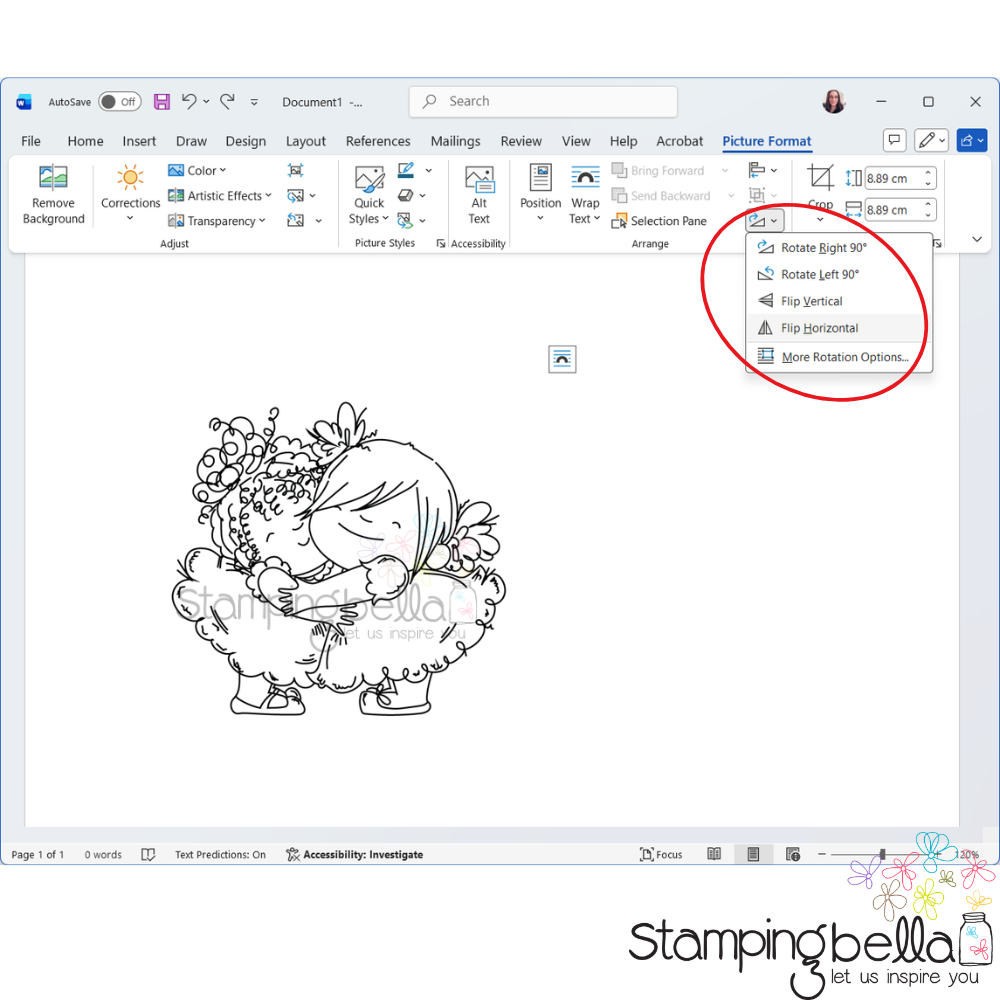
Simply select the circled button in the Picture Format menu and then select “Flip Horizontal”. This will mirror the image.
You can add as many digis and sentiments as you need/can fit on a page, then print out ready to do some colouring!
I hope that was helpful. If you need any more tips just ask in the comments or hop over to our Stamping Bella Sistahood group on Facebook!
Next week we will look at some more ways to work with digital stamps.
MWAH!
Elaineabella